
Why is your Outlook OST File Not Syncing? Causes and Solutions

An Offline Storage Table (OST) is the local cached copy of the mailbox on the mail server (Exchange, Microsoft 365, or IMAP). This file is regularly synchronized to and from the server to keep the mailbox items updated. Sometimes, you face a situation where the OST file fails to sync with the server due to technical glitches or various other reasons. In this article, we will look into the reasons why the OST file is not syncing and the solutions to fix the issue.
What Happens when OST not Sync with the Server?
When OST file fails to sync with the mailbox on the server, you may experience the following issues:
- New emails are not received in Outlook.
- Mailbox folders are not updated.
- Messages appear on the OWA (Outlook on the web) but not in the Outlook application.
- Different messages count in Outlook and OWA.
Why OST File is not Syncing with Server?
There are several factors that can cause the OST file not sync issue. Some of the common ones are:
- Unstable or slow internet connection.
- Outdated version of Outlook application.
- Low storage space on disk.
- Conflicting applications, like antivirus or Firewall.
- Faulty or incompatible add-ins.
- Corrupt Outlook profile.
- Corrupt or damaged Outlook/Office installation files.
- Outlook mailbox is full.
- Corrupt Outlook data file (OST).
What are the Solutions to Fix Outlook OST File Not Syncing Issue?
Outlook may fail to sync with the server due to weak or unstable network/internet connection. So, first make sure your network connection is stable and working properly. If the connection is slow or unstable, restart the router. You can also contact your internet provider or IT admin. If this is not the issue, follow the methods below.
Method 1: Check Sync Issues Folders in Outlook
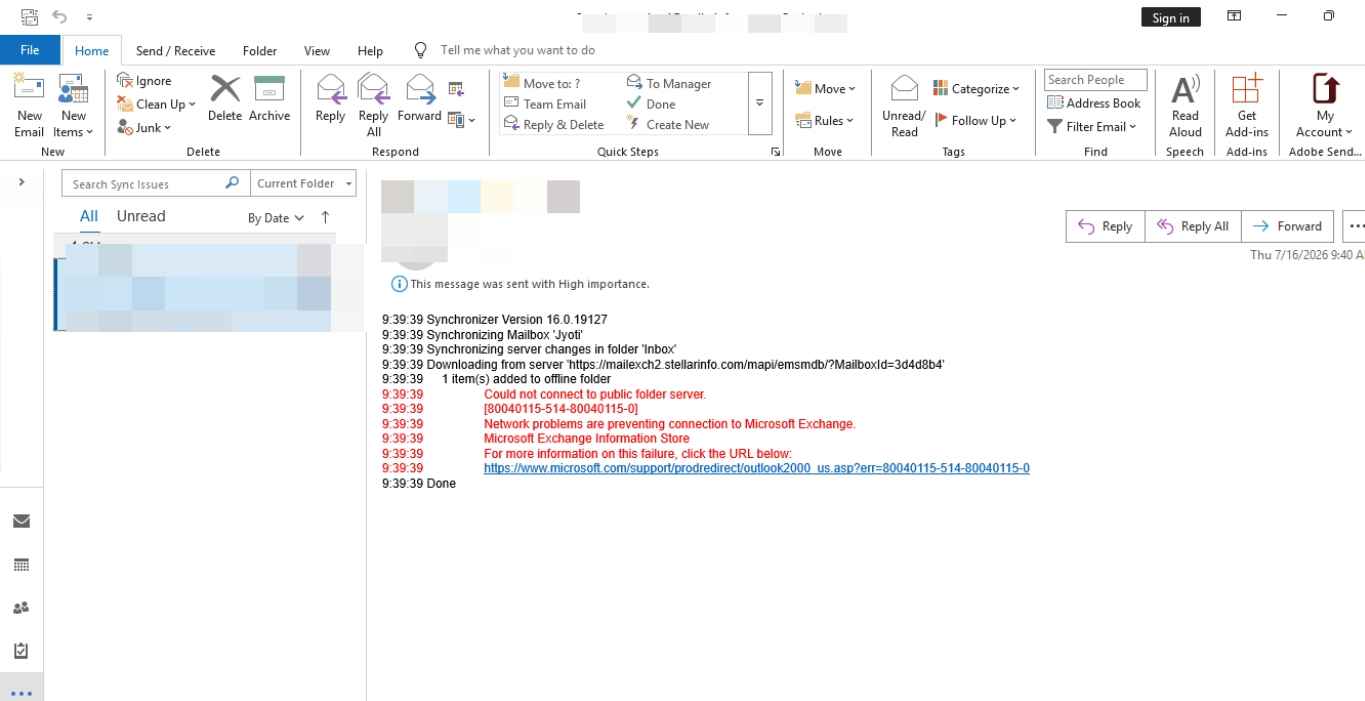
The Sync Issues folder in Outlook stores messages related to synchronization issues. It has three subfolders: Local failures, Conflicts, and Server failures. By default, this folder and its subfolders are hidden. To view them, click the three dots at the bottom-right of the navigation pane and then choose Folders.
When you open an email in Sync Issues or its subfolders, you may see error messages. These messages explain the sync issue and group it by the main cause. You can check the error message to find the cause of the sync issue and fix it.
Method 2: Check if Work Offline Mode is Disabled
You may have turned on Work Offline mode in Outlook by mistake. In this mode, Outlook disconnects from the server and does not receive emails or notifications. So, make sure the Work Offline mode is turned off. Follow these steps:
- In Outlook, click Send/Receive on the top ribbon.
- Make sure Work Offline is not enabled.

- Check the status bar. It should now appear ‘Connected to Exchange Server.’
Method 3: Manually Synchronize Outlook Folders
Outlook may not automatically update a folder even when it is connected to the Exchange Server. In such a case, manually synchronizing the folder can help refresh its contents. To do so, follow these steps:
- Open Outlook and select the folder that is not syncing.
- Click Send/Receive on the top ribbon.
- Select Update Folder to synchronize the selected folder.
- To synchronize all folders, click Send/Receive All Folders.
Wait for the synchronization process to complete.
Method 4: Check and Adjust Cached Exchange Mode Settings
Cached Exchange Mode allows Outlook to store a local copy of your Exchange or Microsoft 365 mailbox in an OST file. If this mode is disabled or its settings are incorrectly configured, it may affect how mailbox data is stored and synchronized locally. To check if the mode is enabled, follow these steps:
- In Outlook, click File > Account Settings > Account Settings.
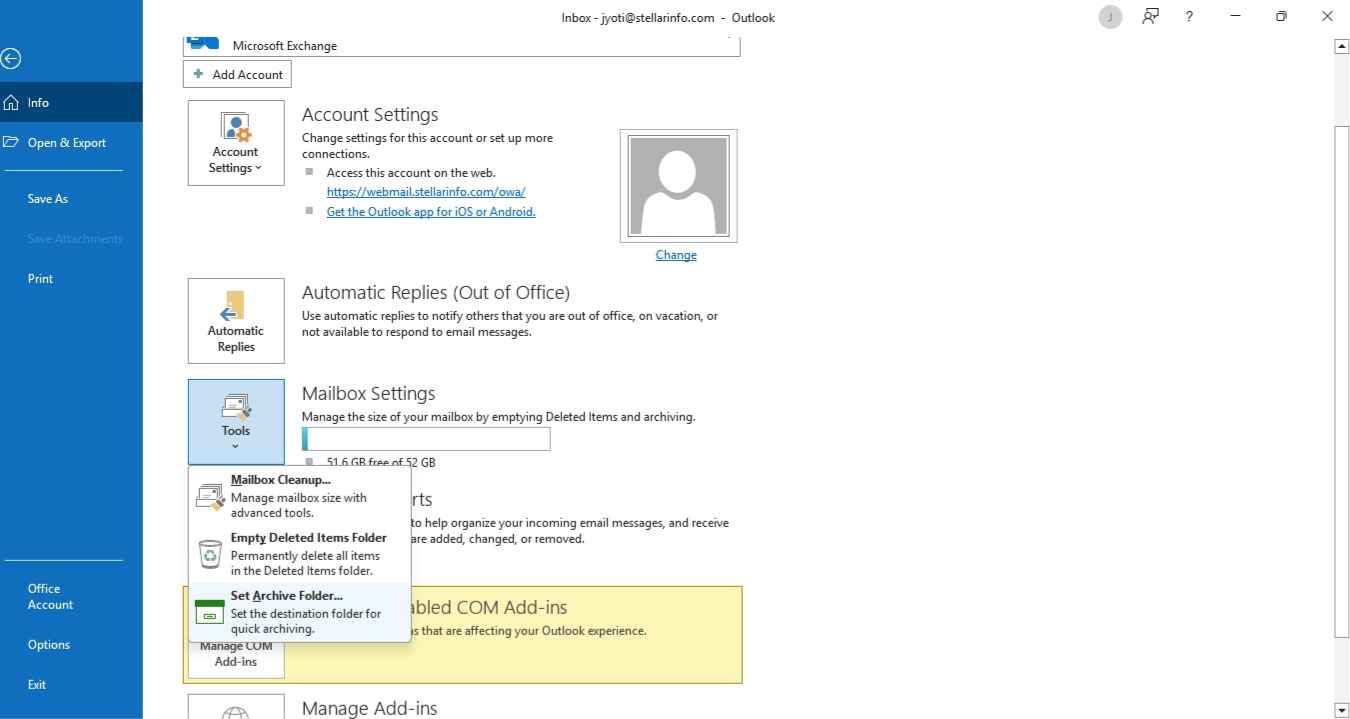
- Select your Exchange or Microsoft 365 account and click Change.
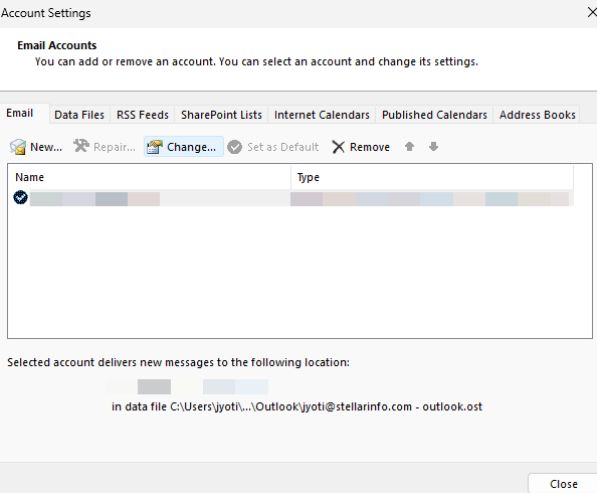
- Under Offline Settings, make sure Use Cached Exchange Mode is enabled. Then, click Next > Finish.
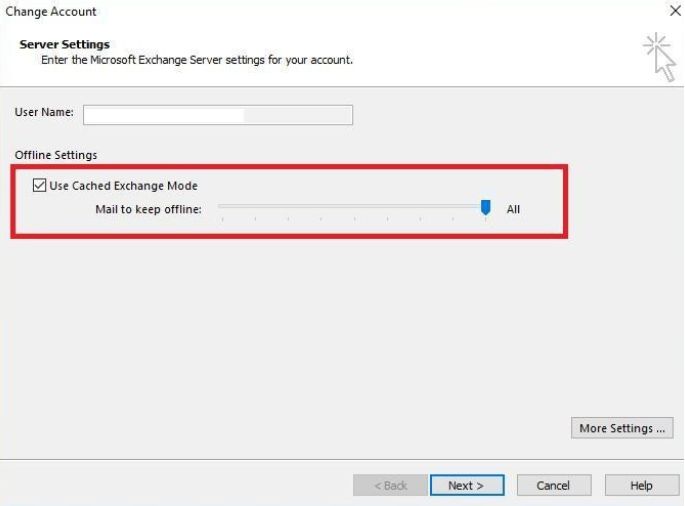
Restart Outlook and see if the issue is resolved.
Note: Cached Exchange Mode is not available in New Outlook for Windows.
Method 5: Recreate the OST File
If the OST file is damaged, Outlook may fail to synchronize mailbox folders correctly. In this situation, recreating the OST file can help resolve the issue as Outlook downloads a fresh copy of mailbox data from the server. Here’s how to recreate the OST file:
- Close Outlook completely.
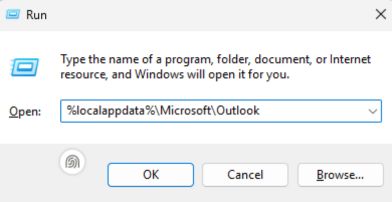
- Open the Run dialog by pressing Windows + R.
- Enter the following path and press Enter:
%localappdata%\Microsoft\Outlook
- Locate the OST file associated with your Outlook account.
- Rename the OST file by adding .old at the end or move it to another folder to create its backup.
- Restart Outlook.
Outlook will create a new OST file and download mailbox data from the Exchange Server. Depending on the mailbox size and internet speed, the synchronization process may take some time.
Note: Do not delete the existing OST file without first checking whether it contains unsynchronized local data.
What if the Issue is Still Not Resolved?
If you have tried the above methods but Outlook still fails to synchronize, this means the OST file is severely corrupted or becomes inaccessible. In this case, you can recover the mailbox data from the OST file. For this, you can use a specialized OST to PST converter tool, such as Stellar Converter for OST. It is designed to extract mailbox items from inaccessible or orphaned OST file and save them to PST file. It preserves the original folder structure and hierarchy after conversion. You can then import this file into Outlook and restore the items.
Conclusion
An Outlook OST file may stop syncing because of network problems, incorrect synchronization settings, or any other reason. In this article, we have mentioned the solutions to resolve the issue. If the OST file is encrypted or inaccessible, you can convert OST to PST by using a specialized OST to PST converter tool, such as Stellar Converter for OST. It can help you to extract all the items from the OST file and save then in Outlook-importable PST file format.
Also Read: How to Turn Off App Tracking on Android and iPhone (iOS)