
How to Turn Off App Tracking on Android and iPhone (iOS)
What Is App Tracking and How Does It Affect Your Ads?
What do you do in your apps, and which websites do you visit on your smartphone? The advertising industry is interested in this kind of information. However, you can limit this so-called tracking on both Apple and Android devices.
Are the apps I already have affecting the ads I see on my smartphone? (Yes, very often!) Your iPhone and Android phone have privacy controls that allow you to choose whether an app can track your activity for advertising purposes. You can control tracking permissions and restrict activity data to target ads.
How Advertising IDs Work on Smartphones
Many smartphones use an advertising ID, a string of numbers and letters that apps can use for advertising-related purposes. Its availability and use depend on the device, operating system, and privacy settings. Depending on the apps, permissions, and advertising technologies involved, some activity data may be used to personalize ads across apps and websites.
For example, you might play a particular game and later see an ad for that game or a similar product on a website. Whether this scenario occurs depends on the advertising services and data available to the companies involved. “The advertising becomes more relevant to you,” is how the providers like to describe it. This is because (at least in theory) people who see ads for offers that interest them are more likely to click and buy.
How to Turn Off App Tracking on Android
Below image shows the steps on Android 14 and older.
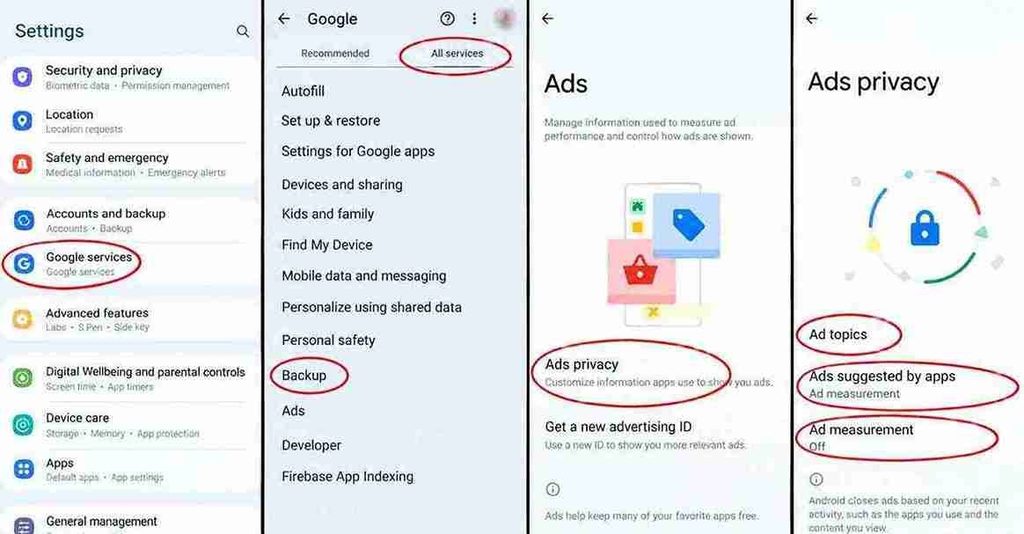
- Open your smartphone’s settings.
- Tap on Google.
- Tap on All services.
- Under “Privacy & security”, tap Ads, then tap Ads privacy.
Here you can tap and toggle on or off advertising topics, ad suggestions from apps, and ad performance measurement, one after the other. We’ll explain what your choices mean a little further down.
If you have an advertising ID (see above, technical background), you can reset it on the screen from step 4 (apps will then access a newly created ID) or delete it entirely. This prevents apps from using the ID to show you personalised ads. If you have already deleted it, you will only see the entry “Received a new advertising ID”. If you do not want to see personalised ads, you can ignore this entry.
Alternative Steps for Android 15
- Open your smartphone’s settings.
- Tap on Privacy & Security.
- Tap on Privacy settings or More privacy settings.
- Tap on Advertisement.
- From here on, proceed as above from step 4.
What Android Advertising Privacy Settings Mean
Advertising Topics
If you enable this option, the following happens: Based on your installed apps, Android compiles topics that are likely to interest you. For example, if you use apps from online clothing stores, you might see more fashion ads on your device than other people. Apps can thus learn your preferences to select relevant ads. However, they cannot infer which other specific apps you use. If you don’t want to see ads based on your general interests either, disable this option.
App-Suggested Ads
Google clearly explains what happens when you enable the “Allow ads suggested by apps” setting: “For example, if you use an app for marathon training, it might be inferred that you’re interested in running shoes. If you then later use another app, you might see ads for running shoes suggested by the first app.”If you don’t want these ads, turn the option off.
Ad Performance Measurement
Apps may share a limited amount of data to measure ad performance, such as when an ad was shown. You can disable this feature by turning off “Ad measurement” in Android’s ad privacy settings.
How to Turn Off App Tracking on iPhone (iOS)
Steps to Disable App Tracking on iOS
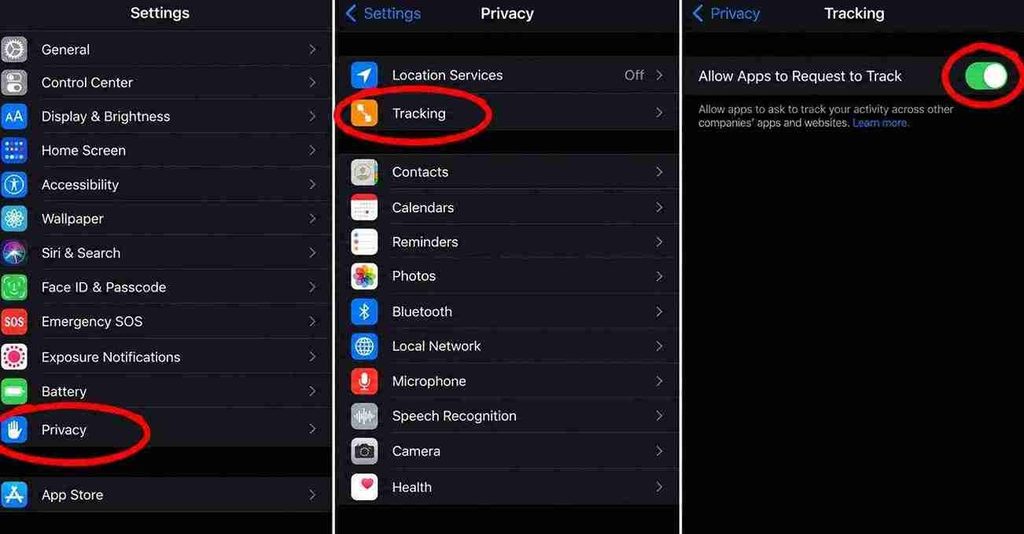
- Open the settings on your Apple device.
- Tap on Privacy or Privacy & Security.
- Tap on Tracking.
Here you can configure whether you generally want to allow your installed apps to track your usage behaviour. If you don’t want this feature for any app, you can disable the option here. If you leave it enabled, apps that want to track your behaviour will have to request permission. The apps and your selection will then be listed here, and you can change your decision later.
How to Turn Off Personalized Apple Ads
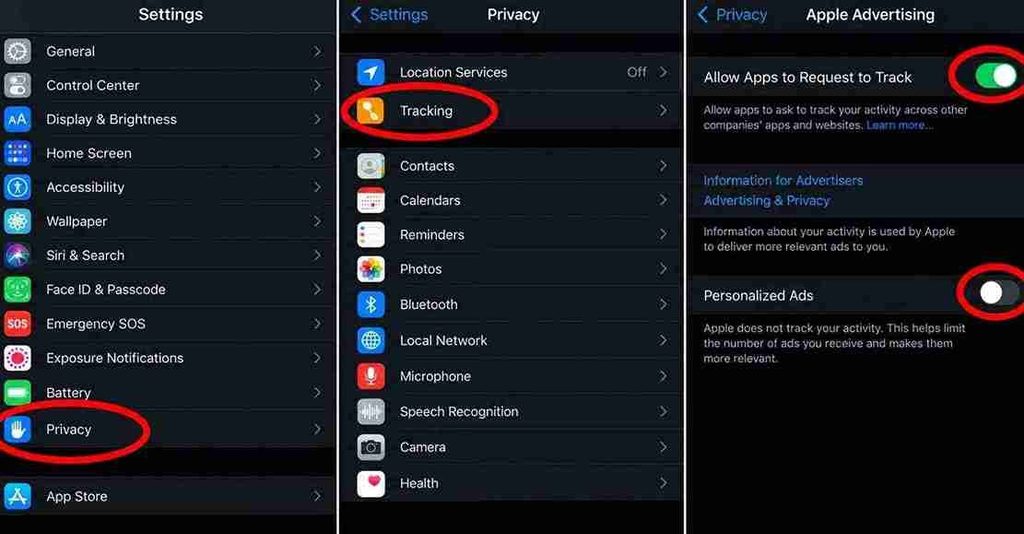
- Open the settings on your Apple device.
- Tap on Privacy & Security.
- Scroll down and open Apple Advertising.
- If you turn off personalized advertising, Apple will not use its advertising personalization setting to select ads based on your interests. You may still see ads, but they will not be personalized through this setting.
Related Articles: