
What Is Firmware and How Does It Work?

Firmware is the software that controls a device’s hardware, enabling it to start up, communicate with other devices, and carry out the essential tasks it‘s designed for. It can be found in devices including smartphones, printers, wireless routers and even smart TVs. All of these devices have firmware (and have it operating underneath the applications you use every day). In this article, we explain what firmware is, what it does, how it differs from hardware and software, the different types, and tips for updating firmware safely.
What Is Firmware?
Firmware is software stored on a physical component (non-volatile memory such as ROM, flash, or EEPROM) whose purpose is to control the hardware and provide it with basic instructions for booting and operation. It is located closer to the device than regular applications and, unlike them, remains installed even when the device is turned off.
In practical terms, firmware is the “operating manual” that tells the device how to initialise itself, how to communicate with its sensors, antennas, and ports, and how to perform essential functions even before the operating system loads. If you erase or corrupt the firmware, the device may be unable to boot or control the hardware. Do not attempt to erase the firmware; if you encounter problems, use the manufacturer’s official recovery procedure.
Firmware vs Software vs Hardware
- Hardware: the physical parts of the equipment (motherboard, antennas, screen, battery, ports).
- Firmware: the embedded code that governs that hardware, sets parameters and low-level routines (for example, how the modem manages frequency bands or how it negotiates the speed of a port).
- Software: programs and systems that rely on firmware to provide functions to the user (operating system, apps…).
One way to look at it is that hardware is the “body”, firmware is the “nervous system” that coordinates organs and reflexes, and software is the “skills” that you see and use every day.
What Is the Purpose of Firmware in a Device?
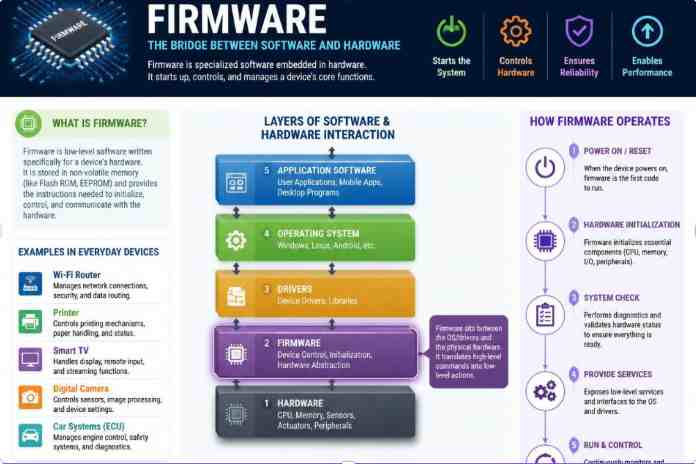
The firmware is responsible for ensuring that all the hardware works in harmony. It handles invisible but essential tasks, such as initialising components when the device is turned on, coordinating communication between the processor, memory, and sensors, and managing power consumption to optimise performance and battery life.
It also manages wireless connections, such as Wi-Fi, Bluetooth, and 4G/5G, ensuring they are established correctly and with adequate signal strength. In home devices like routers or repeaters, updated firmware can improve network stability and coverage.
Furthermore, firmware acts as a security barrier, verifying that the system does not load malicious code during startup (using features such as secure boot). And in many modern devices, from smart TVs to electric cars, it allows for the addition of new features or improved compatibility with other devices without changing the physical hardware.
What Are the Different Types of Firmware?
Not all firmware is the same, nor does it operate at the same level within a device. Depending on its function and degree of interaction with the hardware, we can distinguish three main categories. Below, we explain how they work and how they differ.
Low-Level Firmware
It’s the closest to the hardware. It usually resides in highly protected memory and manages basic routines: motherboard initialisation, power control, boot phases, and the internal logic of a controller (for example, the storage controller or the touchpad controller). It’s stable and rarely updated because an error here can render the device unusable.
High-Level Firmware
It operates on pre-initialised components and coexists with the operating system. In mobile phones and routers, you’ll find it in modules such as the modem, the Wi-Fi chip, or the graphics controller. It is updated more frequently to improve compatibility, performance, or security.
Subsystem Firmware
This refers to the independent firmware of certain device components: battery management systems (BMS), cameras, biometric readers, printers, hard drives, and network cards. Each subsystem can incorporate its firmware with different update policies.
How to Find Your Device’s Firmware Version
The exact path depends on the device, but the pattern is similar: device settings → about → version. On Android phones, firmware-related version information may appear in Settings > Check the phone’s details, such as the baseband version or build number, depending on the device. On iPhones, it’s in Settings > General > About, where you’ll see, for example, the modem’s firmware version . On routers, access the device’s web panel (gateway, such as 192.168.1.1), log in, and look for Status, System, or Firmware.
For a reliable result, note the exact version string (for example, “v1.0.9” or “baseband 5.x…”) and compare it with the latest version published by the manufacturer in their support centre. This shows whether the firmware is up to date or has a revision that fixes bugs or vulnerabilities.
Firmware Updates: What They Are and When to Do Them
A firmware update is a new version of the embedded code that brings improvements in stability, performance, or security, accessory compatibility, and sometimes additional features. They often include security patches that mitigate vulnerabilities discovered in wireless chips, controllers, or boot modules.
If you don’t update your firmware, you may miss security patches and fixes for bugs and vulnerabilities. Over time, your device may become less stable or incompatible with newer accessories and services.
When Should You Update Firmware?
- If the manufacturer recommends it in the release notes or a notice appears on the device panel, you should update.
- If you experience failures (WiFi outages, restarts, problems with cameras or peripherals) and the update indicates a fix for that behaviour, you should update.
- Periodically on critical equipment (home router, NAS, access points), when recommended by the manufacturer.
Some basic precautions: perform the update with sufficient battery power or the device plugged into a power source , do not interrupt the process, and, if the manufacturer recommends it, back up your settings (for routers, export the settings file). After updating, verify the version and check that key functions (WiFi, calls, printers) are working correctly.
Therefore, keeping your firmware up to date can help address security issues, bugs, compatibility problems, and other issues identified by the manufacturer.
Also read: Bluesnarfing: What It Is & How to Protect Your Devices